

How to set Browser caching to speed up your website without plugin
How to set Browser caching to speed up your website without plugin Read More »

Back burrom click link Back buttom with color and size Back + if there is no history redirect my given URL (https://blogstour.com) buttom with color and size Forward buttom
How to create Back and forward url link Read More »

Create a new page or post in WordPress, and switch to the Text editor. Add the following HTML code: <button id=”popup-button”>Start Now</button> <div id=”popup-modal” class=”popup”> <div class=”popup-content”> <span class=”close” id=”popup-close”>×</span> <p>Click on the buttons below:</p> <a href=”https://isansar.net/buttom1″ id=”popup-sub-button1″ class=”popup-sub-button”>Whatsapp</a> <a href=”https://isansar.net/buttom2″ id=”popup-sub-button2″ class=”popup-sub-button”>Messanger</a> <a href=”https://isansar.net/buttom3″ id=”popup-sub-button3″ class=”popup-sub-button”>Email</a> </div> </div> 2. Add the CSS styles
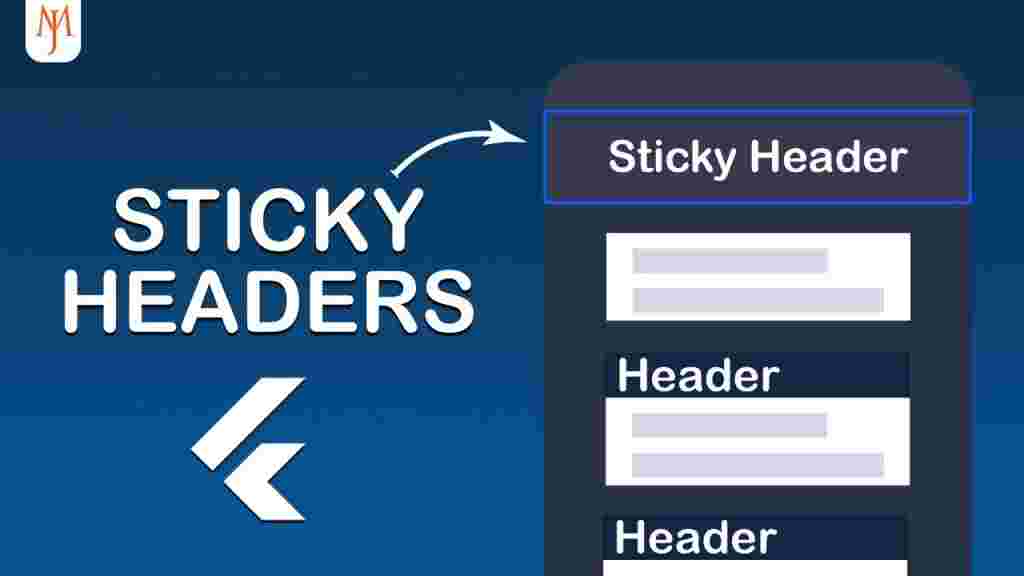
go to dashboard > Customize > CSS > Past this Code .ast-mobile-header-wrap { position: fixed; top: 0; left: 0; width: 100%; z-index: 9999; background-color: #FCEDEC; } this Code for mobile meny header you have to find out your header Label by Inspect and replace it
How to make sticky header or fixed header with out plugin Read More »

Add below code in functions.php file. Buy and empty Cart // Add Buy Now button on product page add_action( ‘woocommerce_after_add_to_cart_button’, ‘add_buy_now_button’ ); function add_buy_now_button() { global $product; echo ‘<a href=”‘ . esc_url( wc_get_checkout_url() ) . ‘?buy-now=’ . $product->get_id() . ‘” class=”button alt”>Buy Now</a>’; } // Handle Buy Now button redirect to checkout page add_action( ‘template_redirect’,
Add Buy Now Button in WooCommerce Without Plugin Read More »
Create folder : Create folder with “Astra-child” name (Write According to what theme you are using) Features Image :- insite of folder you need thame Features Image (You can direct li go to your dashboard and Thame > right click on your theme Photo and save as image and download it . .css File :-
How to Create WordPress Child Theme without Plugin Read More »

go to thame edit > Appearance > Thame Edit > Theme Header (header.php) Remove this Code which is on Header Note: if you didn’t get Install Astra Thame ) <meta name=”viewport” content=”width=device-width, initial-scale=1″>
How to make Desktop site your website for Mobile without plugin Read More »